Sync your account with your calendar
One of the main purposes of noCRM is to make sure you never miss out on a business opportunity. Having your reminders in the calendar you use on a daily basis is therefore essential.
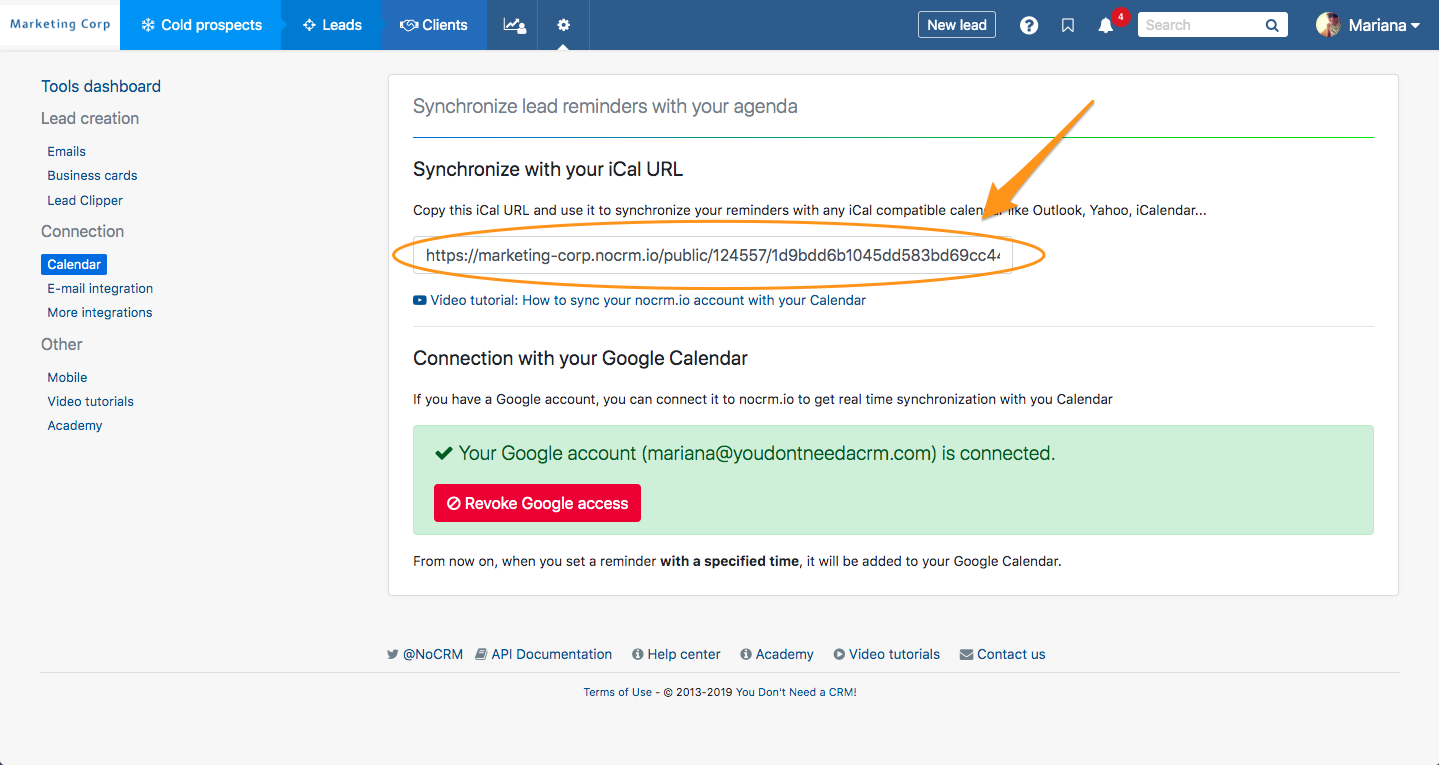
How? Easy. Simply go to the Tools > Calendar section of your Pro Pipe Lines account and choose the calendar sync. according to the calendar you use.
⚠️ Note that this sync. needs to be done by every user of the account! Each user can set different preferences, such as Date & Time format, Week start day, the average duration of appointments, and "Delete future calendar entry when I change the lead status from Standby to anything else."
Once you've done this, test the connection by setting a lead to Standby, with a specific date AND time for the reminder.
1. Outlook Calendar
To synchronize Pro Pipe Lines to your Outlook Calendar, you'll have to copy the iCal URL, and follow the instructions of the video below:
2. Calendar (Mac)
To synchronize Pro Pipe Lines to your Calendar (Mac), go to the Tools section of your account and follow the instructions of the video below:
3. Google Calendar
If you have a Gmail or G Suite account, in the Tools > Calendar section of your account, click on the button "Connect my Google account".

Choose the account you wish to connect, and that's it. As easy as that.
Remember to always set a reminder with a specific date & time.
4. GSuite / Google Apps for Work
If your GSuite domain is connected to your Pro Pipe Lines account, the calendar sync. will be done automatically.
In case you do not wish to use the same Google Calendar like the one connected through GSuite, you will either have to disconnect the GSuite >< Pro Pipe Lines connection (either contact us or do it from your GSuite Admin), or use the iCal link URL to connect to another Google Calendar.
Here a video showing you how to proceed:
Troubleshooting
1. In case of an error with the Google Calendar connection
It can happen that Google updates its Calendar, and when it happens, you will need to revoke the connection between your account and your Google Calendar and connect it again.
How to proceed:
- Go to Tools > Calendar
- Click on "Revoke Google Access"
- Choose the Google account you were connected to
- Click on "Connect to my Google account"
- Authorize propipelines.com to access your account information
All set!
2. How to see other users' calendars
In order to see other users' calendars, you will need to ask them to share their iCal URL with you so that you can add it to your own calendar: Google, Outlook, or any calendar of your choice.