How to Create a Trello Card When a Lead is Moved to a Step
Don't waste time moving back and forth from propipelines.com and Trello. Automate the creation of Trello cards when your leads progress in your sales pipeline.
All you need to set it up are Trello, propipelines.com, and Zapier accounts.
If you don’t have an account with propipelines.com, click here to start a FREE trial.
If you don't have an account with Trello, click here to start a FREE account.
If you don't have an account with Zapier, click here to sign up for a FREE trial.
Get Started
Connect your TRIGGER App Account and Set Up the Trigger
Sign into your Zapier account and click on the MAKE A ZAP! button at the very top where you will be directed to a new page:
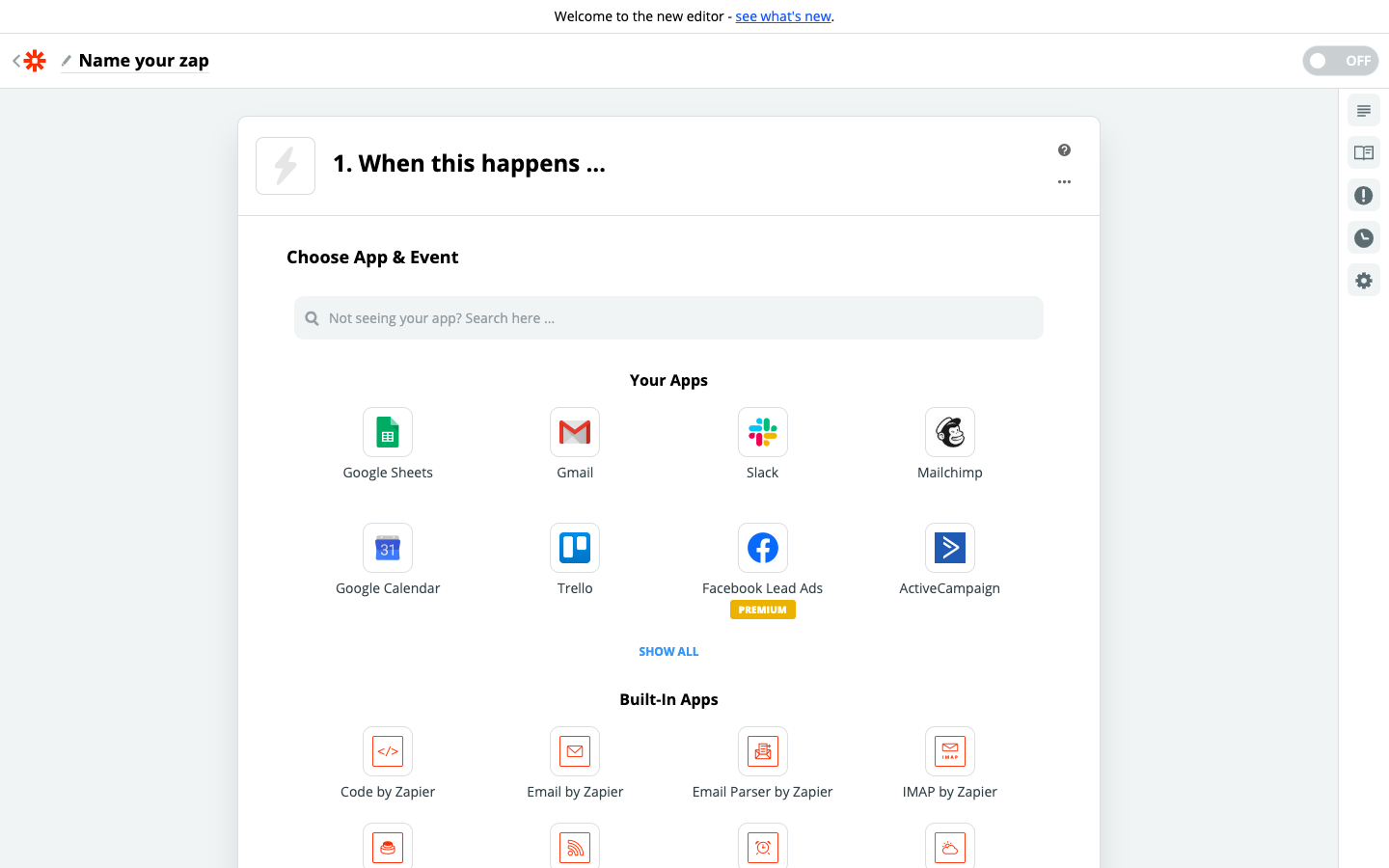
1. Choose the Trigger App: propipelines.com
2. Choose the Trigger: Lead Step Changed To
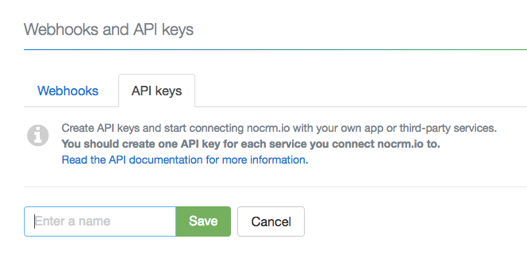
3. Connect Zapier to your propipelines.com account if you haven’t already by:
4. Edit Options: Select the name of the step that will trigger the event and name the event
5. Test the step by creating a new lead in your propipelines.com account and changing the step to the one selected previously.
Connect your ACTION App Account and Set Up the Action
1. Choose an Action App: .Trello
2. Choose an Action: Create Card
3. Connect Zapier to your Trello account by entering your email and password
4. Edit Template to set up your Trello card including comments and even add a checklist!

5. Test and name your Zap!