What is a Manual Trigger & How to Use it to Send Template Emails
A Manual Trigger allows you to trigger and execute actions in other apps through Zapier from your lead’s Actions menu. Instead of automating tasks between apps when a lead hits an event you set, you can choose to manually fire off a trigger at any time for any lead.
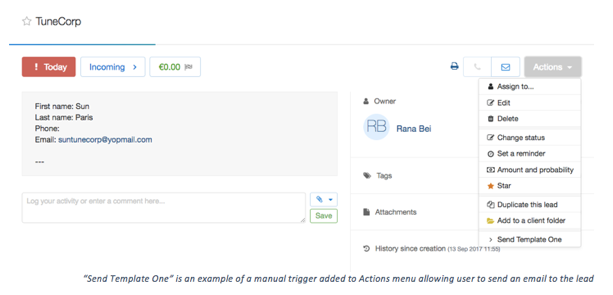
Suppose you want to send out a follow up email template to a lead without having to go to your email provider and inserting the information required. With the Manual Trigger we created, you can set up the template through Zapier and fire off the email to any lead directly from the Actions menu in one click.
Find out more about what you can do with the lead Actions menu here.
All you need to set it up are Gmail, propipelines.com, and Zapier accounts.
If you don’t have an account with propipelines.com, click here to start a FREE trial.
If you don't have an account with Zapier, click here to sign up for a FREE trial.
Get Started
Connect your TRIGGER App Account and Set Up the Trigger
Sign into your Zapier account and click on the MAKE A ZAP! button at the very top where you will be directed to a new page:
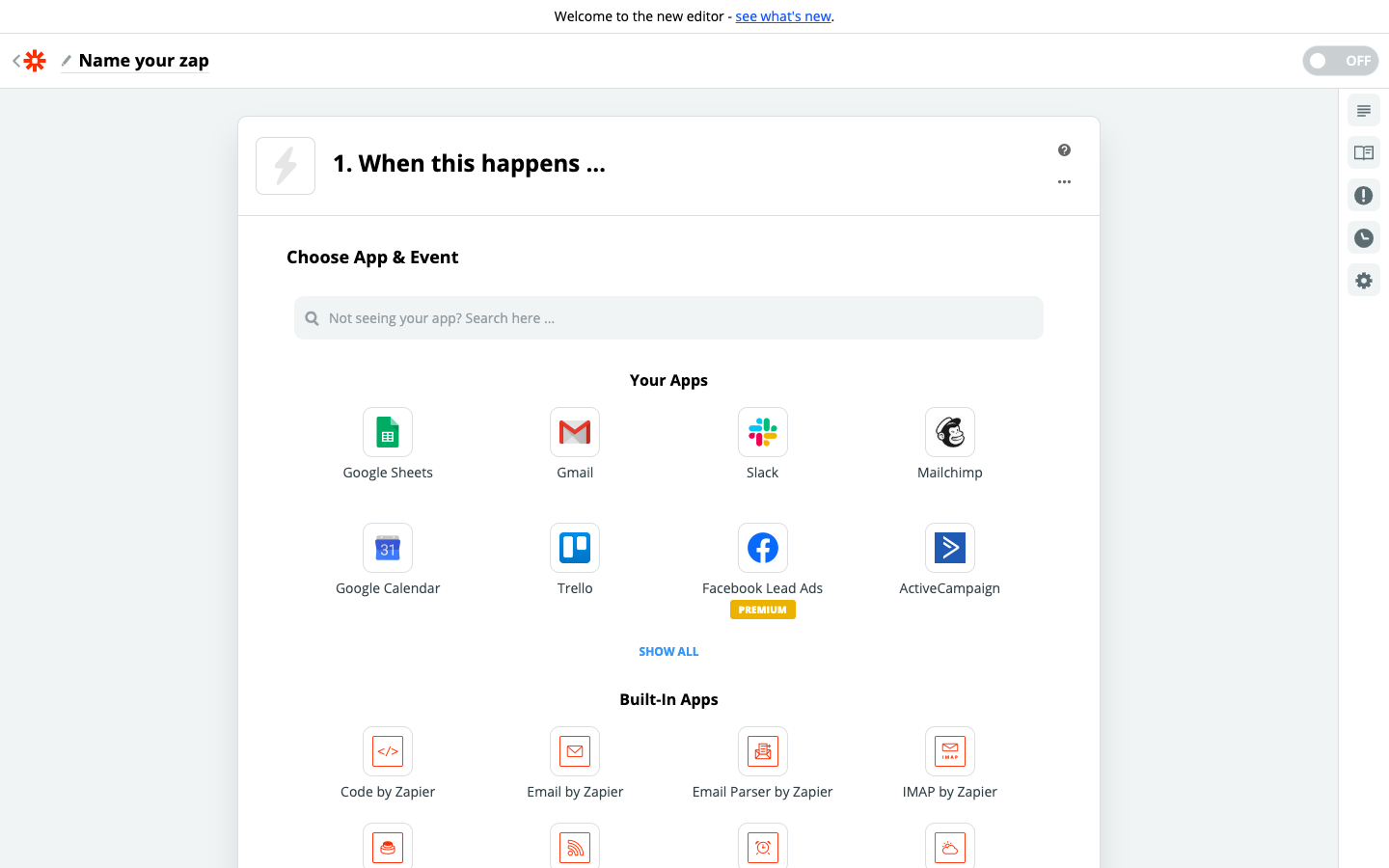
1. Choose the Trigger App: propipelines.com
2. Choose the Trigger: New Manual Trigger
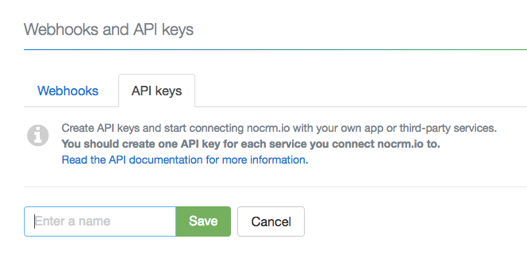
3. Connect Zapier to your propipelines.com account if you haven’t already by
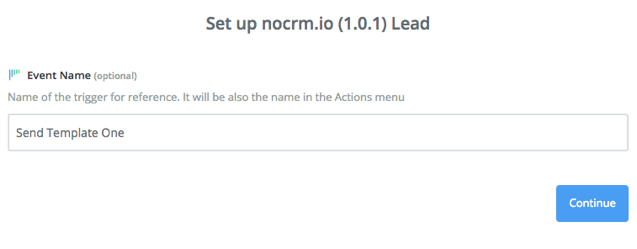
4. Name your Event— This will be the name of the trigger in the Actions menu
5. Fetch & Continue. Make sure you have a recent lead created in your propipelines.com account
Connect your ACTION App Account and Set Up the Action
1. Choose an Action App: Gmail
2. Choose an Action: Send Email
3. Connect Zapier to your Gmail.io account
4. Edit Template to set up your Gmail email
Based on the lead you tested earlier, select the fields you want Gmail to retrieve information from and write the customized email in the Body field
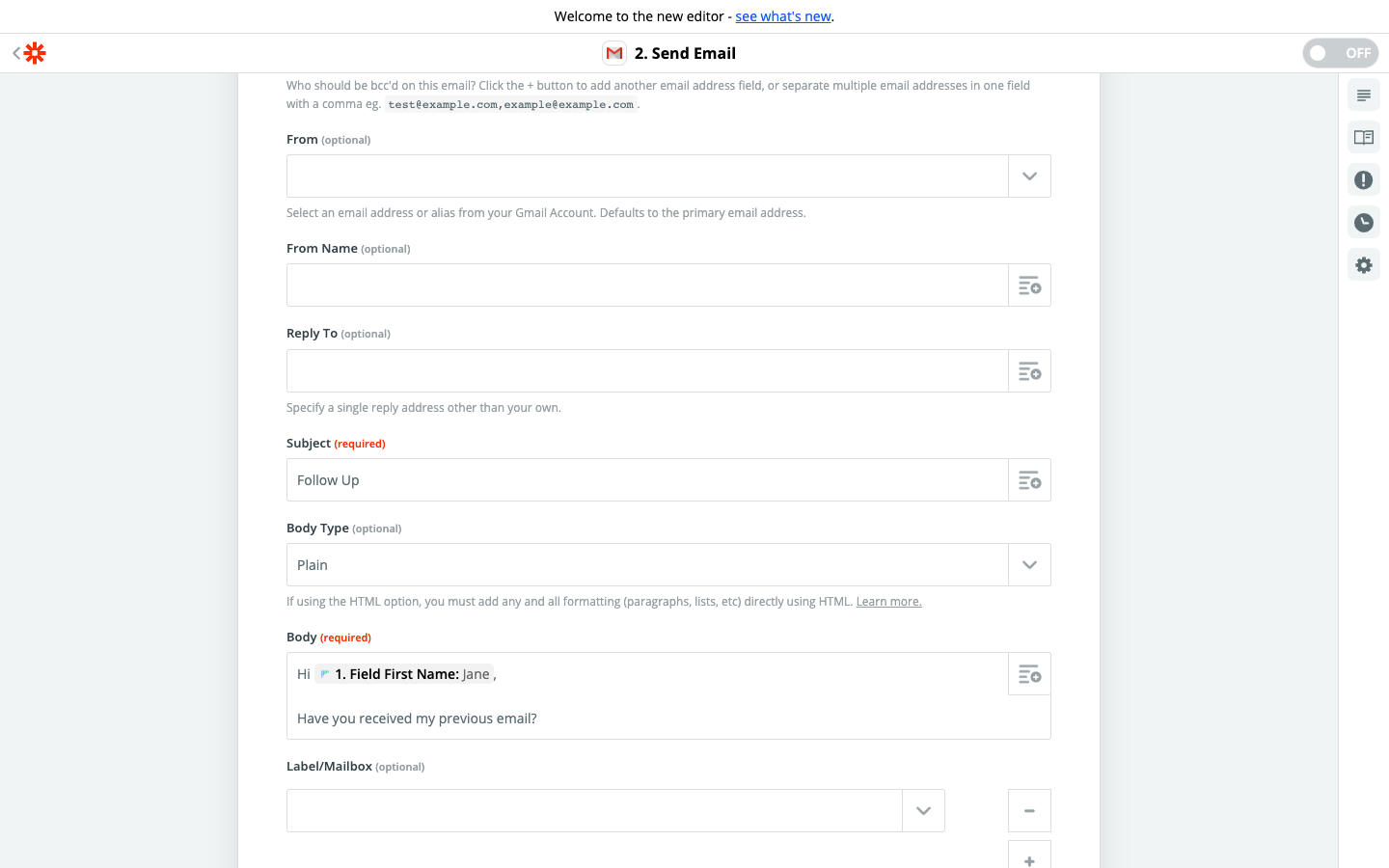
5. Test the step and the Action set up is finished!
Note:The Manual Trigger is only available in our Expert edition.